 skyfleet
Webhooks
A link that triggers a use case from any tool Skyfleet has no integration for.
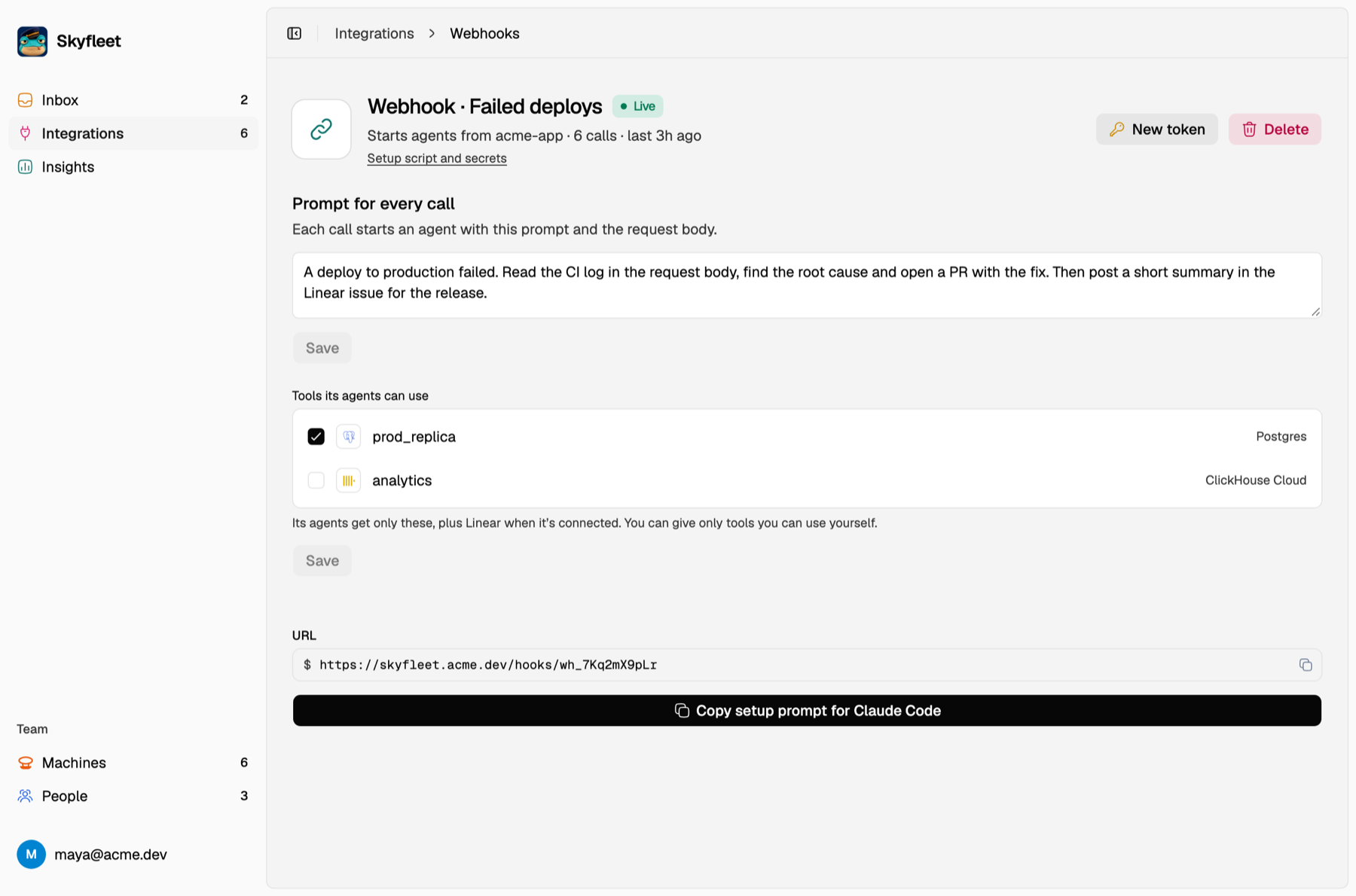
A webhook is a link that triggers a use case. Open the use case on the Dashboard and press Add on its Webhook row: Skyfleet shows the URL and the header with a secret token. Copy the token then, because you'll only see it once. Adding Customer support makes one for you. You can also press Add on Webhooks under Connections, name it, pick the use case it triggers, and copy the prompt it gives you into your agent.
curl -X POST https://<your-server>/api/v1/webhooks/<id> \
  -H "Authorization: Bearer $WEBHOOK_TOKEN" \
  -H "content-type: application/json" \
  -d '{"id": "INC-42", "title": "Checkout returns 500", "route": "/checkout"}'
Every call raises an issue in your Inbox. A new one starts an agent on the account the webhook
runs on, with the use case's instructions and environment, and whatever you sent as context.
On the team account it gets the use case's tools. Until that's set up, it runs as whoever added the webhook and gets
every connection they can use. The answer is 202 {"issue": "<id>", "agent": true}, and "agent": false on a repeat.
- Repeats follow up. Calls with the same
id(orticket_id,ticket.id,incident.id) land on the same open issue and add to its count instead of starting another agent. Without an id, the same body counts as the same call. titlenames the issue. Otherwise Skyfleet usessubject,summary,ticket.subject,incident.titleormessage.- A use case that's off answers
409and starts nothing. Removing a use case deletes its webhooks, so their calls get401, like a wrong token. A body over 256 KB gets413.
A few tips:
- Keep the token in an environment variable, never in your code.
- Send it and move on: use a short timeout and don't wait for the agent.
- Send what the agent needs, like the error, stack, route or commit, and never your users' data.